

Importing & Adding References
Paperguide offers a number of different ways to upload papers/references into your reference manager. Every research paper you upload will have its bib and citation automatically generated.
To upload a reference into Paperguide Reference Manager:
Go to My References and click on the "Add Papers" button. You'll see several options for adding papers/documents.
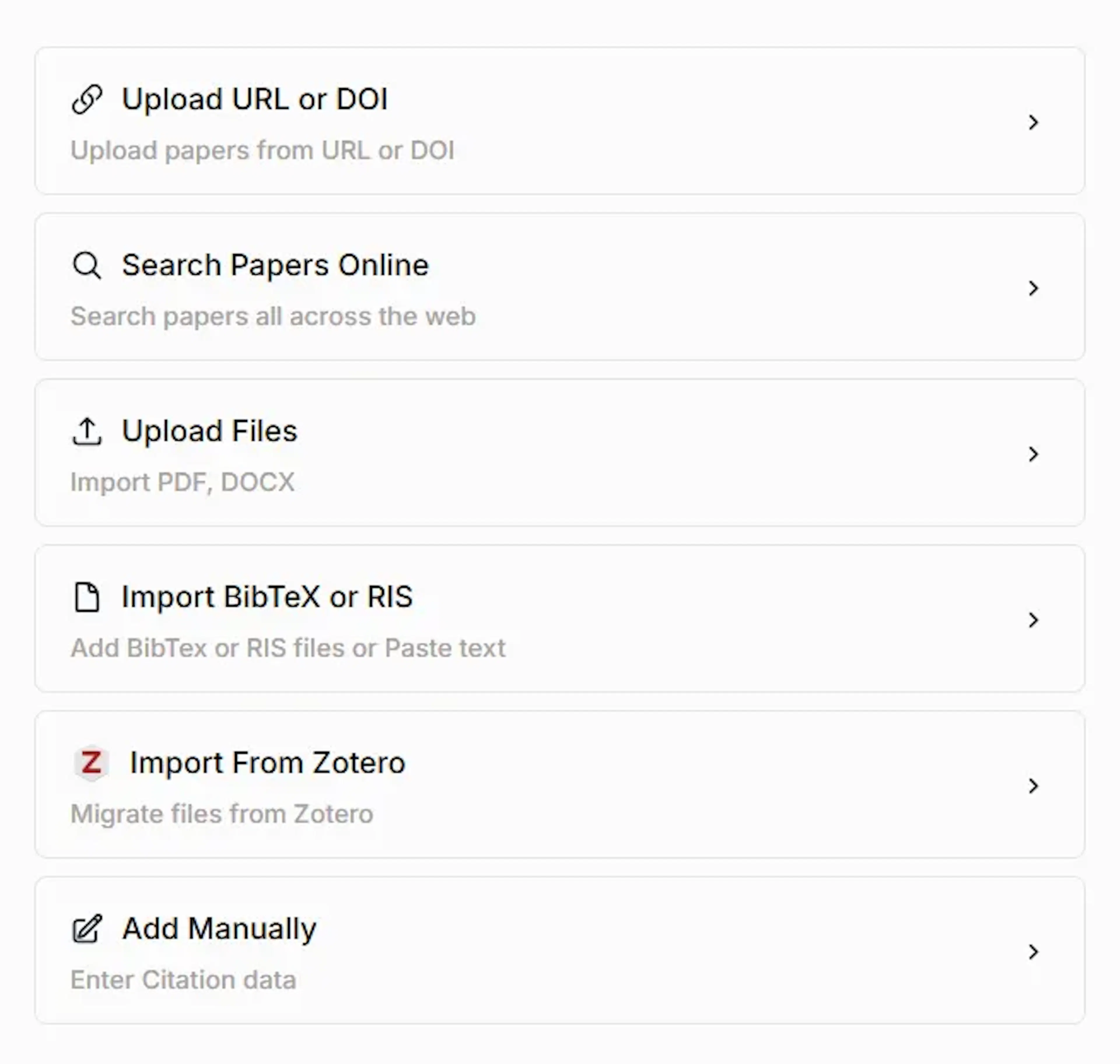
Upload URL/DOI
-
Select Upload URL/DOI from the dropdown.
-
Paste the paper’s URL or DOI (journal, book, article, etc.) and it auto-fetches metadata and open-access PDFs.
For best results, add references using URLs or DOIs. Our system will automatically retrieve the metadata and download the PDF if it's available as open access.
Search Papers Online
-
Choose Search Papers Online from the dropdown. This will open the search interface for accessing the research database.
-
In the search bar, enter relevant keywords, or paper titles to search papers.
-
Browse the list of papers that match your search, and click Add Paper button to import.
Even here, Paperguide auto-fetches metadata and open-access PDFs.
Upload Files
Paperguide allows you to upload files directly into your Reference Manager for easy organization and reference management.
-
Choose Upload File from the dropdown, and click on Select to open file selection.
-
Select up to 30 PDF or supported files at once from your computer.
-
After selecting the files, Paperguide will automatically extract metadata for the uploaded research papers.
Import from Zotero
Paperguide’s Zotero integration helps you bring your library into Paperguide reference manager. Click here to know about about Import from Zotero
Import BibTeX or RIS
Paperguide supports importing references through BibTeX and RIS files, making it easy to manage your references. You can either upload files directly or paste the BibTeX/RIS text. Follow these steps:
Import via BibTeX/RIS Text
-
Choose BibTeX/RIS from the dropdown.
-
Paste your BibTeX or RIS text in the popup.
-
Click Import to add to your library.
-
Ensure that your BibTeX/RIS files or text are formatted correctly for smooth importing.
-
You can upload or paste multiple references at once, making it easier to manage large citation lists.
Import via BibTeX/RIS File Upload
-
Switch to Upload File tab.
-
Select
.bibor.risfiles from your computer.
Add Manually
In addition, Paperguide allows you to manually add references by entering all the necessary citation details. Follow these steps to add references manually:
-
Click the Add Papers button at the top of the Reference Manager. From the dropdown menu, select Add Manually.
-
A form will appear where you can fill in all relevant citation details (title, authors, publication date, etc.)
-
Complete as many fields as possible to ensure accurate citation data.
-
Once all the details are entered, click the Save button to add the reference to your library.
Make sure to enter all available citation information to ensure the reference is complete and properly formatted.