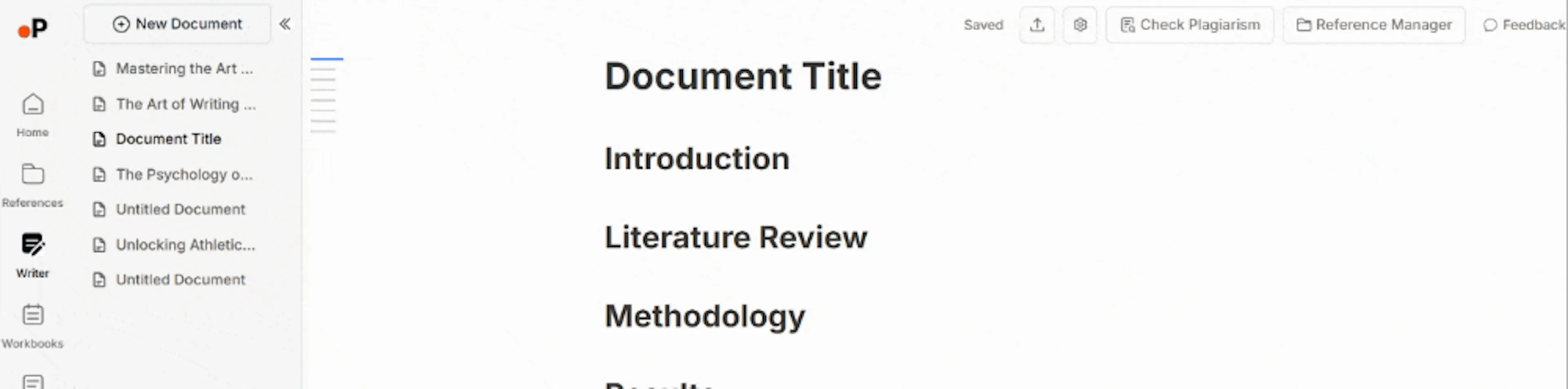

Understand Interface and Writing Document
Once the document is created, the Paperguide Writer provides several key features:
Elements in AI Writer
This is where you will write and format your document.
Formatting Tools
To open text formatting options, type “/” in the new line. It includes Text, Headings, Bullet & Numbered lists, blockquotes, to-do lists, horizontal rules, code blocks, etc.
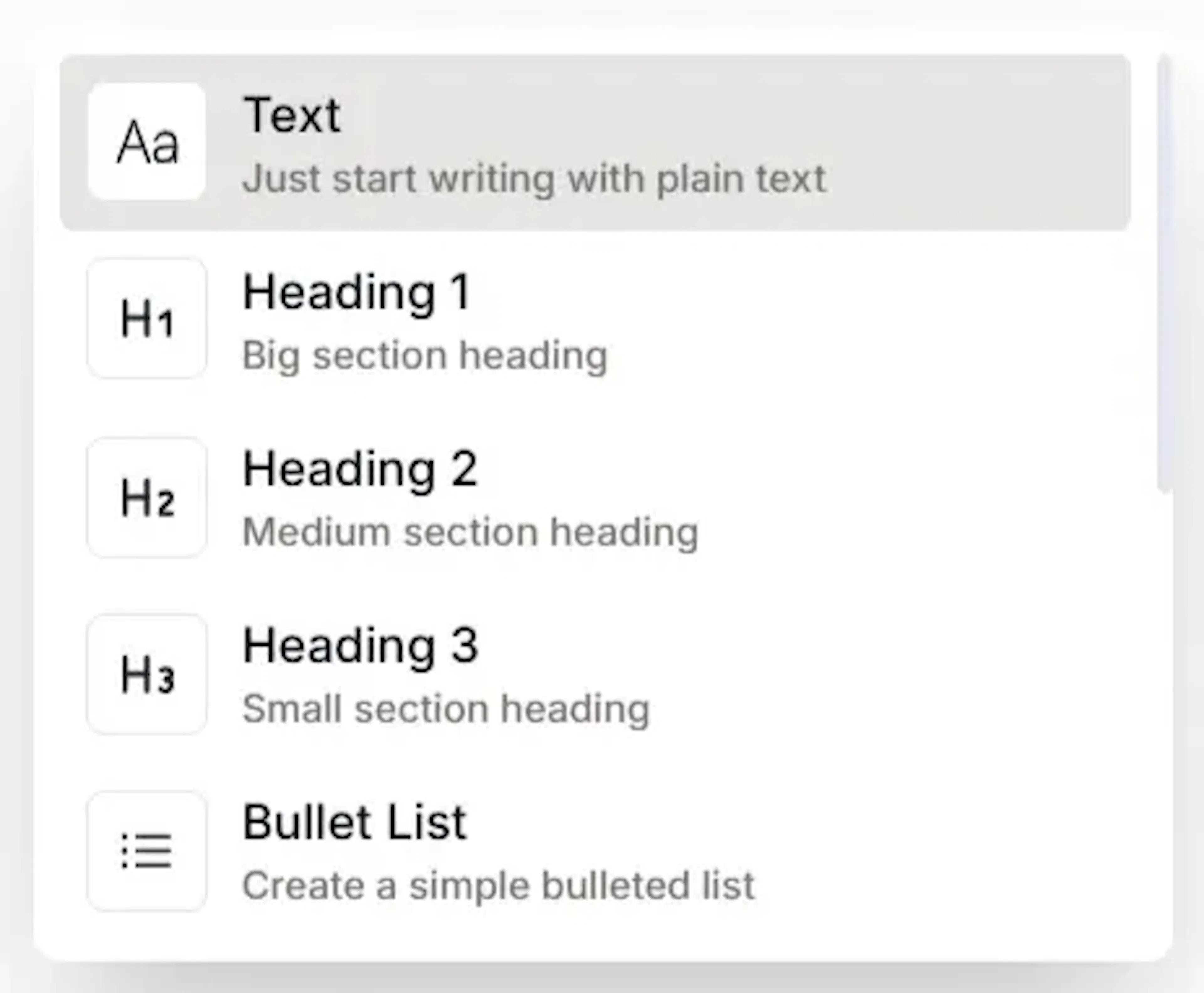
You can even select/highlight text and change formatting options.
Ask AI
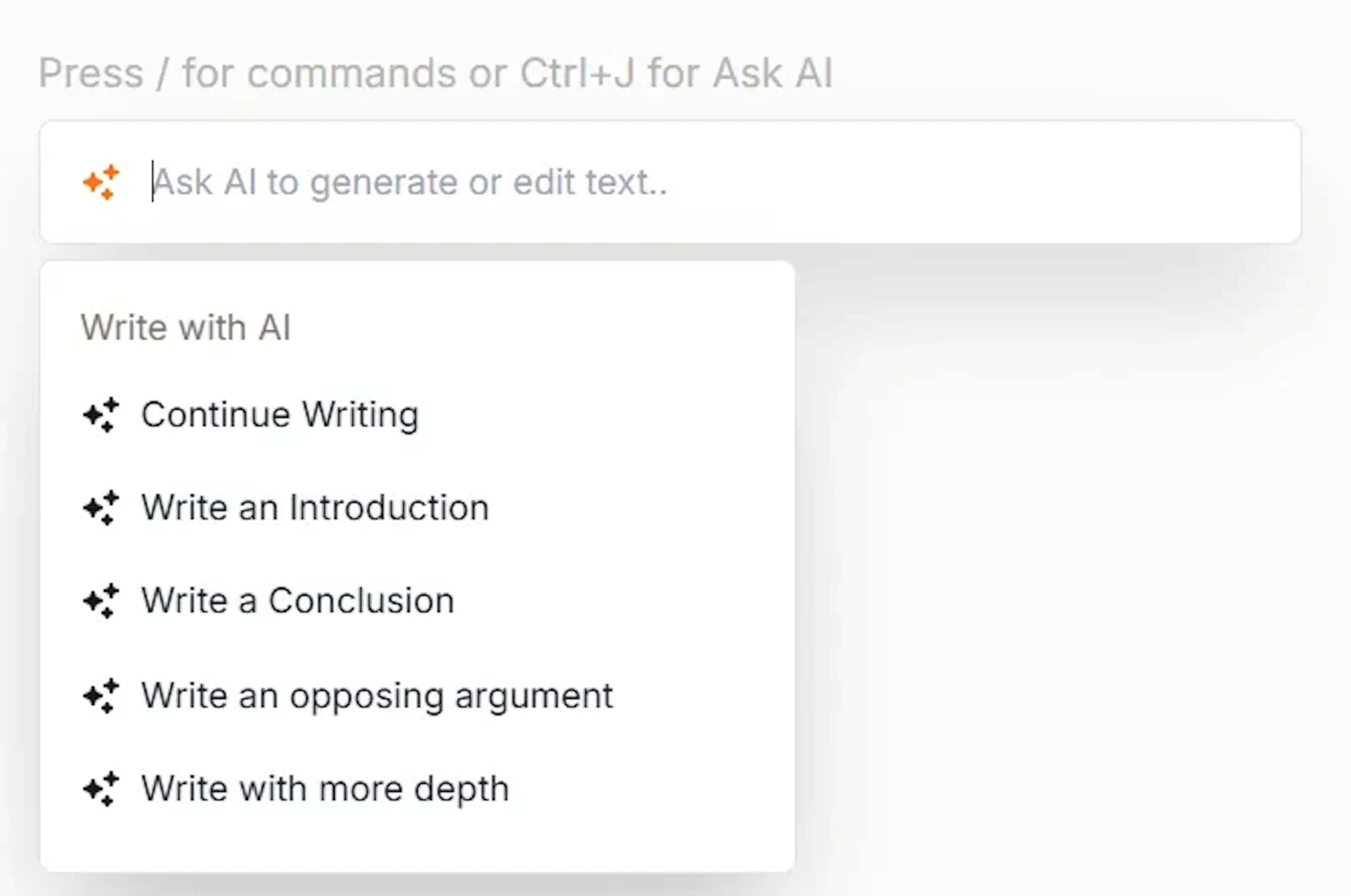
To open the AI command bar and options, use the shortcut “Ctrl + J”, or click on “Ask AI” on the bottom toolbar, or select/highlight text and select “Ask AI” from the toolbar.
Cite
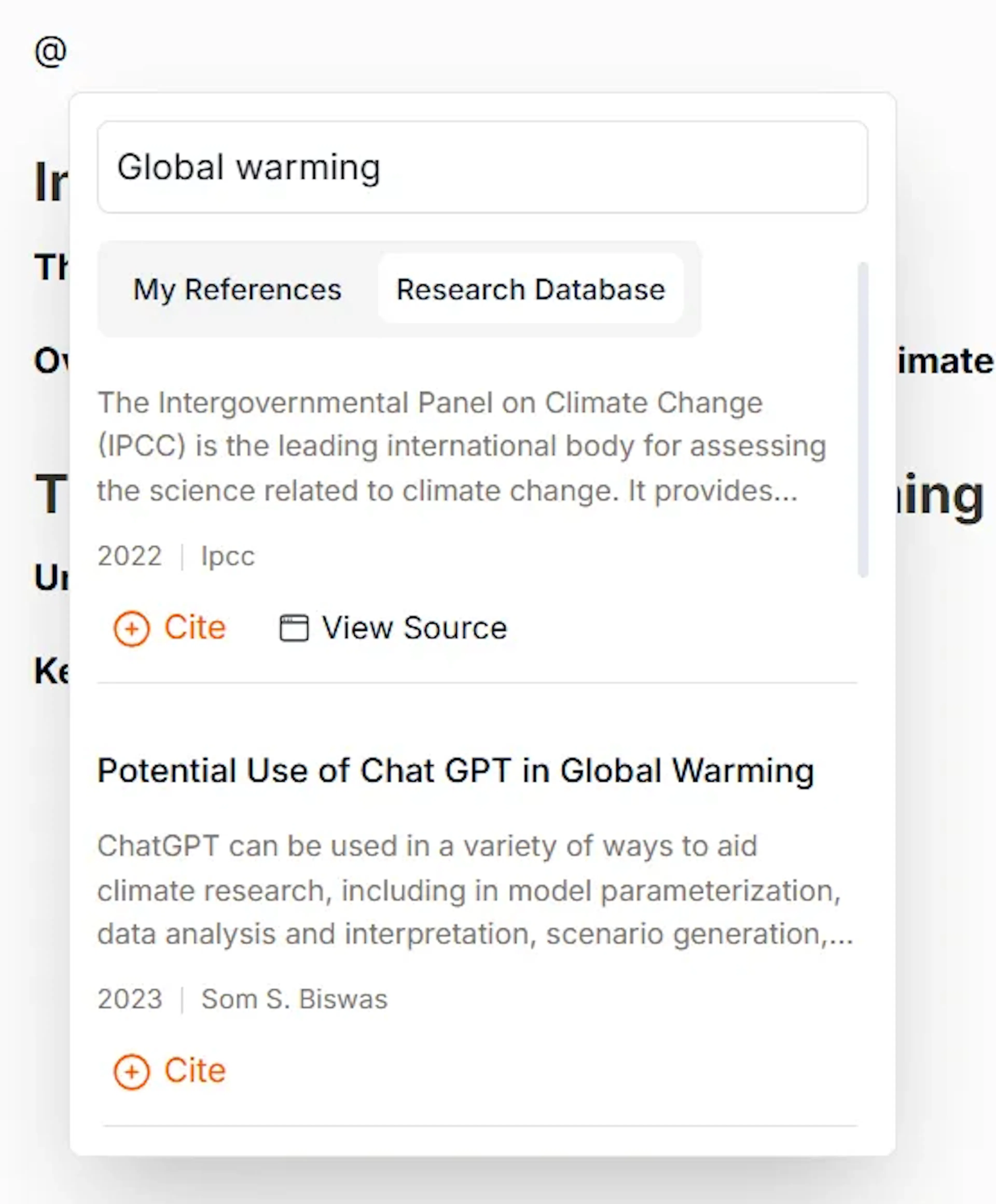
To cite a paper or open the citation manager, type “@” in the doc where you want to add the citation, or click on the “Cite” button on the bottom toolbar.
Header
Options/tools are provided in the header space for quick access.
-
Reference Manager: You can seamlessly pull in references from your references to cite and read/view papers/references as you write.
-
Check Plagiarism: To scan your content across millions of sources, giving you instant feedback to refine your writing with confidence.
-
Settings: To customize your document topic, citation style, language, and more for the document.
-
Export: To export your document.
Outline
Writer allows you to organize and visualize the structure of your document at a glance.
To view the “outline/table of contents” of your writer document, hover on the lines (which represent the outline) on the left side of your document.