

How to use Literature Review
Traditional literature reviews require manually sorting through papers, taking notes, and comparing scattered data—slow and error-prone.
Paperguide's Literature Review tool simplifies this by organizing findings in a customizable table, making trend analysis and gap identification easy. Powered by AI, it helps you gather key findings, methodologies, conclusions, and more insights from relevant research.
How does it work?
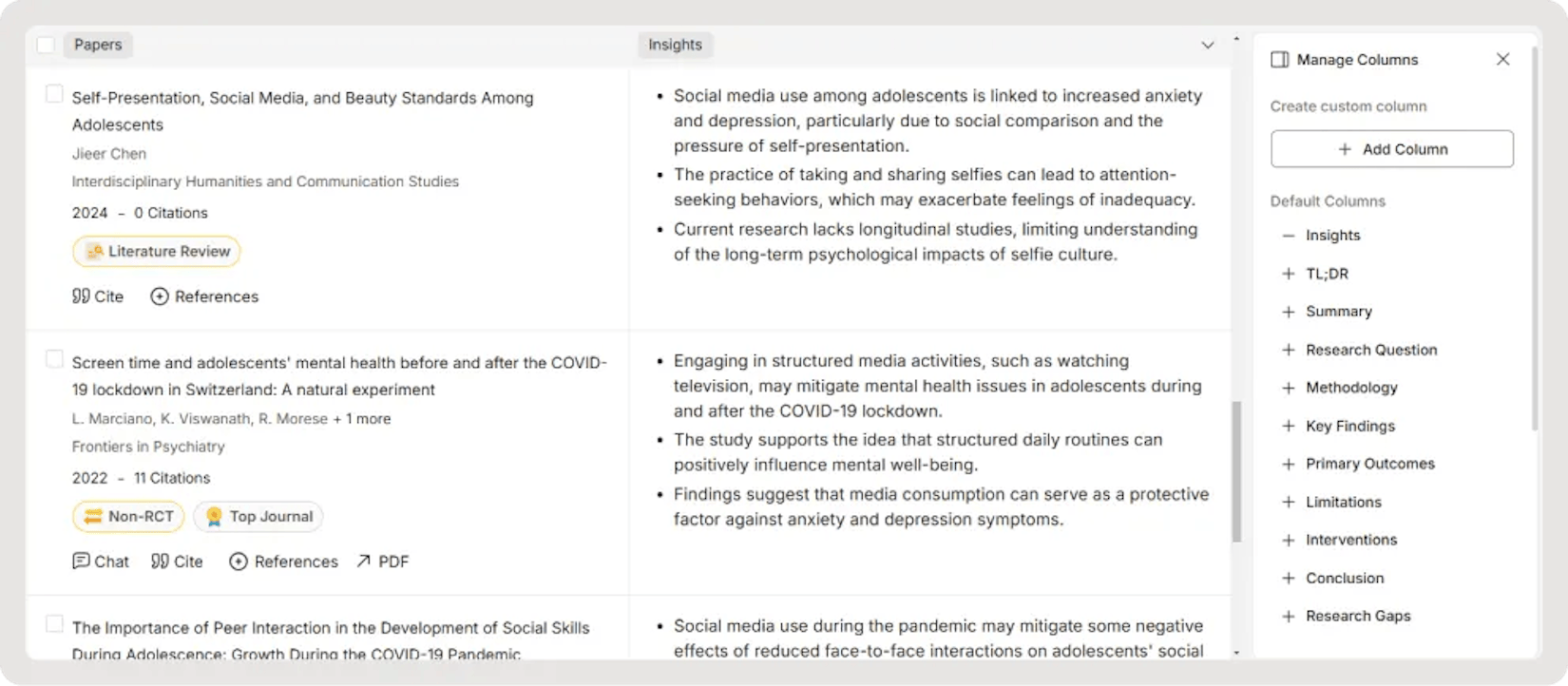
Literature Review presents your results in a customizable table format that lets you compare and analyze papers in unprecedented detail.
✅ Automatically extract key details—We provide columns (e.g., study outcome, demographics, methodology and more).
✅ Customize your table – Add columns to extract exactly what you need
✅ Instantly analyze—Identify trends, patterns, and gaps in research at a glance
1. Ask Question
-
From your Paperguide Home page, navigate to the Literature Review tab.
-
Enter a detailed research question or topic (up to 50 words) in the search bar. The more specific you are, the more precise and useful the results will be.
Example questions
-
What are the recent advancements in AI healthcare applications?
-
How has climate change impacted biodiversity in the last decade?
2. Review the Generated Results
Based on your question and selected source, Paperguide will search through Paperguide's extensive research database of 200 million+ academic papers and provide the 10 most relevant papers (5 papers for non-subscribed) related to your topic.
-
Summary Generation: Paperguide will provide a concise summary of your research question, generated from the key insights found in these top 10 papers.
-
Alongside the summary, Paperguide will create a literature review table that includes paper details and columns to compare and analyze the papers.
3. How to Add & Customize Columns (Extract Data)
In your Literature Review Table, locate the column customization icon on the top right of the table. This menu allows you to view existing columns and create new custom columns.
Add Predefined Columns:
-
Under the Default Columns section, you’ll find predefined columns such as Key Findings, Methodology, Limitations, Conclusions, and more. These columns help you compare common aspects of the papers in your literature review.
-
Click the Tab icon (top right) to open Manage Columns. Choose from 20+ predefined options (e.g., study outcome, demographics, methodology). Our AI extracts the exact data—no manual work needed!
Create Custom Columns:
If you need to track additional information, you can create custom columns by clicking on the + Create Column button.
-
Enter a title (e.g., “Age”).
-
Add instructions for better results (e.g., "Identify and categorize participants as child, adult, or elderly based on age groups in the study").
Our AI extracts and fills the table automatically, making literature reviews effortless.
Note: If the paper does not contain information relevant to the custom column title, the system will indicate that no information is available.
Save or Edit a Custom Column:
-
After creating a custom column, it won’t be listed in the Manage Columns menu until you save it.
-
You can hover over a custom column heading in the table to access options such as Edit, Save, and Close.
-
Once a custom column is saved, it will appear under the Saved Columns section, allowing you to reuse it in other tables like the default columns.
Once a column is saved, you can add it to other tables, just like a default column.
Export Your Literature Review
-
All your workbooks are auto-saved in your Paperguide.
-
Once your table is complete and customized, you can export the table/papers in various formats such as CSV, Excel, BibTex, and RIS.
Quality Metrics & Insights at a Glance
Just like AI Search, papers are ranked by
-
Citation Metrics—See the most influential studies
-
SJR Journal Ranking—Prioritize high-impact papers
-
Study Type & Insights – Quickly understand methodologies and findings
More Features for a Seamless Review
-
Load More—Expand your review with additional relevant papers
-
Export Options – Download your table in CSV, RIS, and other formats
-
Reference Manager – Save papers directly to your reference manager
This means no more scattered notes or manual extraction—just structured, actionable insights in one place.