

Get PDFs in Reference Manager with the Chrome Extension
Find and attach full-text PDFs for papers in your library, in bulk or one at a time.
Overview
Papers added from a DOI, an online search or a BibTeX/RIS file sometimes arrive without a PDF. Paperguide can find the full text for you, and the Paperguide Chrome extension does the searching in your browser. You can also attach PDFs you already have, or ask an AI assistant to find them through MCP.
Before you start
- Install the Chrome extension and log in with your Paperguide account. If you try to find a PDF online without it, Paperguide prompts you with Install extension.
- If your university or library gives you access to paywalled journals, set up library access first. The extension then tries your library for every paper in the search.
Get PDFs for many papers at once
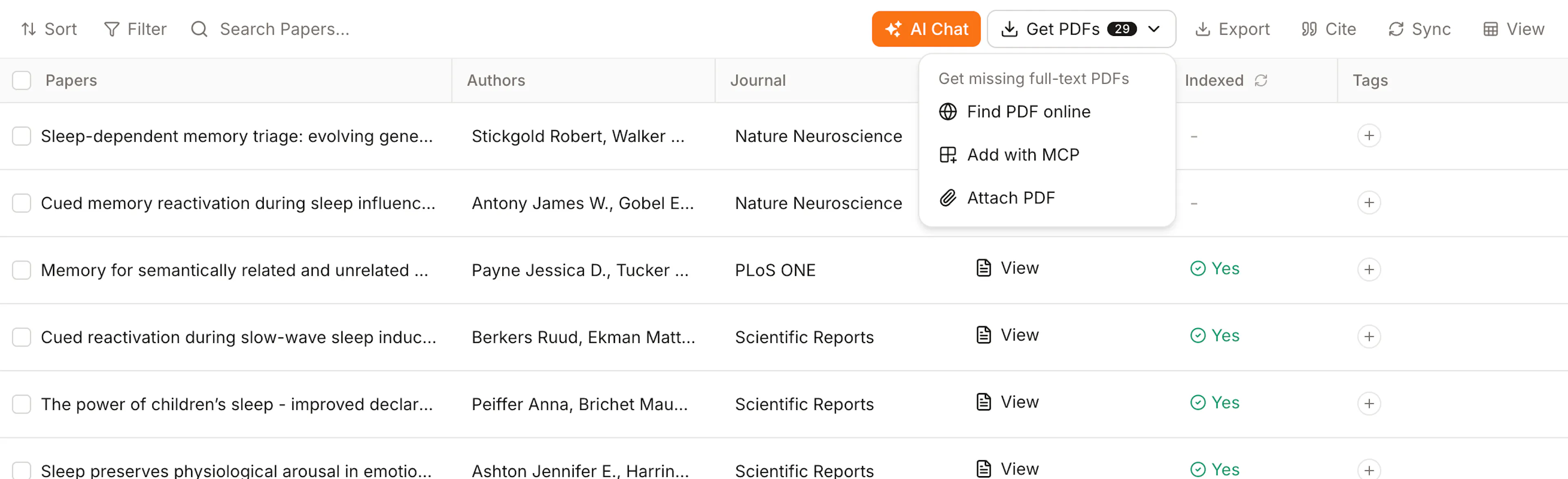
The Get PDFs button in the toolbar above your paper list gets the missing PDFs for a whole folder, or for the papers you pick, in one go.
Choose the papers
Open a folder. To get PDFs for every paper in it, leave all papers unticked. To get them for only some papers, tick those papers.
The number on Get PDFs shows how many of those papers have no PDF yet. When every paper already has one, the button is greyed out. In a narrow window, Get PDFs is in the toolbar's More menu.
Click Get PDFs and choose an option
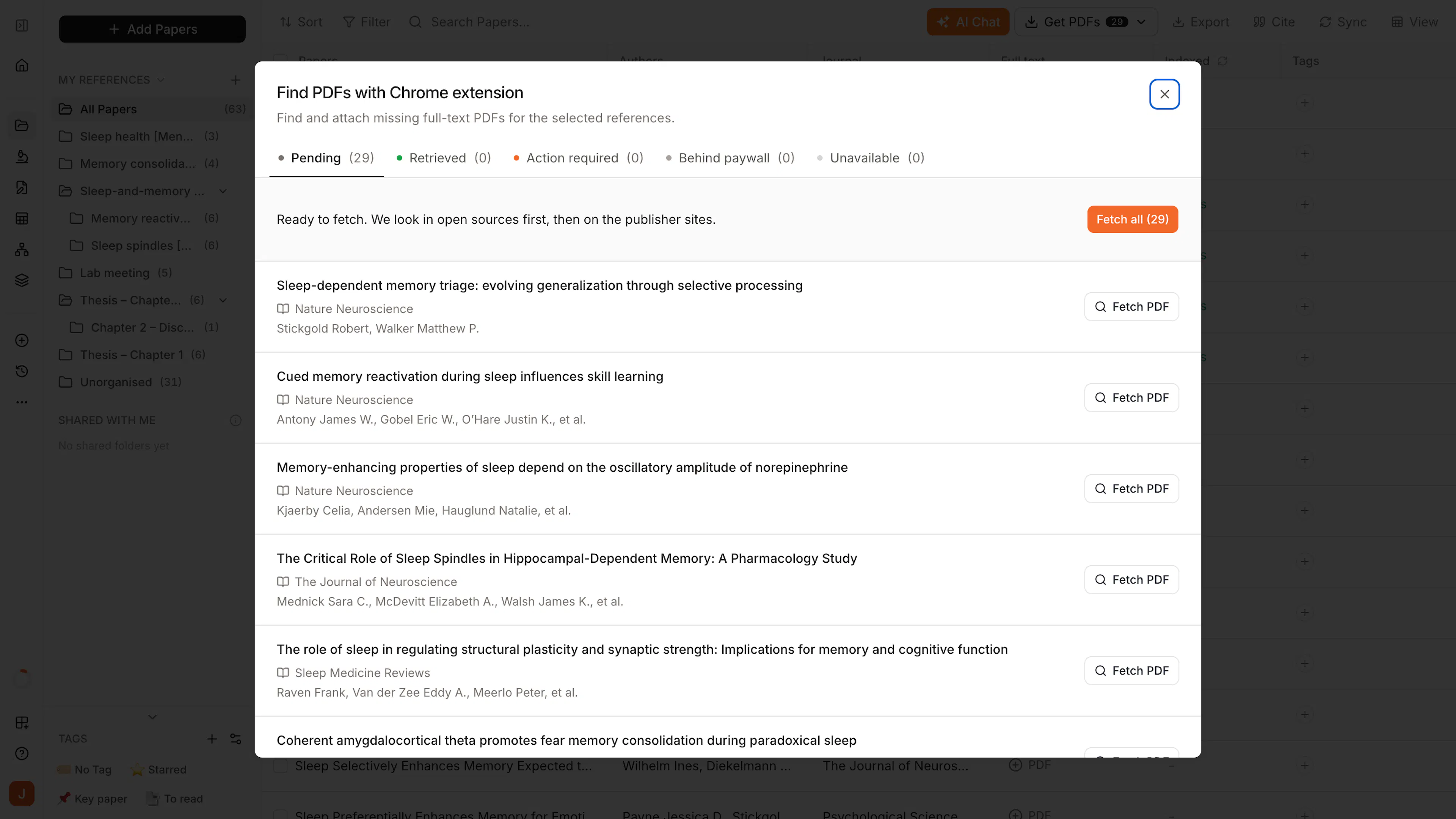
- Find PDF online: opens the Find PDFs dialog, where the Chrome extension finds and attaches the PDFs. See Use the Find PDFs dialog below.
- Add with MCP: opens a ready-made prompt in Claude or ChatGPT, or copies it for Gemini. Your AI assistant finds the missing PDFs and attaches them.
- Attach PDF: drop the PDFs you already have. Each file is matched to its paper by the DOI printed in it. Check the matches, then attach.
Use the Find PDFs dialog
PDFs found here are attached to your references, and indexing starts on its own. If indexing fails for a paper in the Retrieved tab, click Retry on its row.
Each Get PDFs → Find PDF online starts a new search for the papers you chose. To try papers that were behind a paywall again after you set up library access, select them and run it again.
Get the PDF for one paper
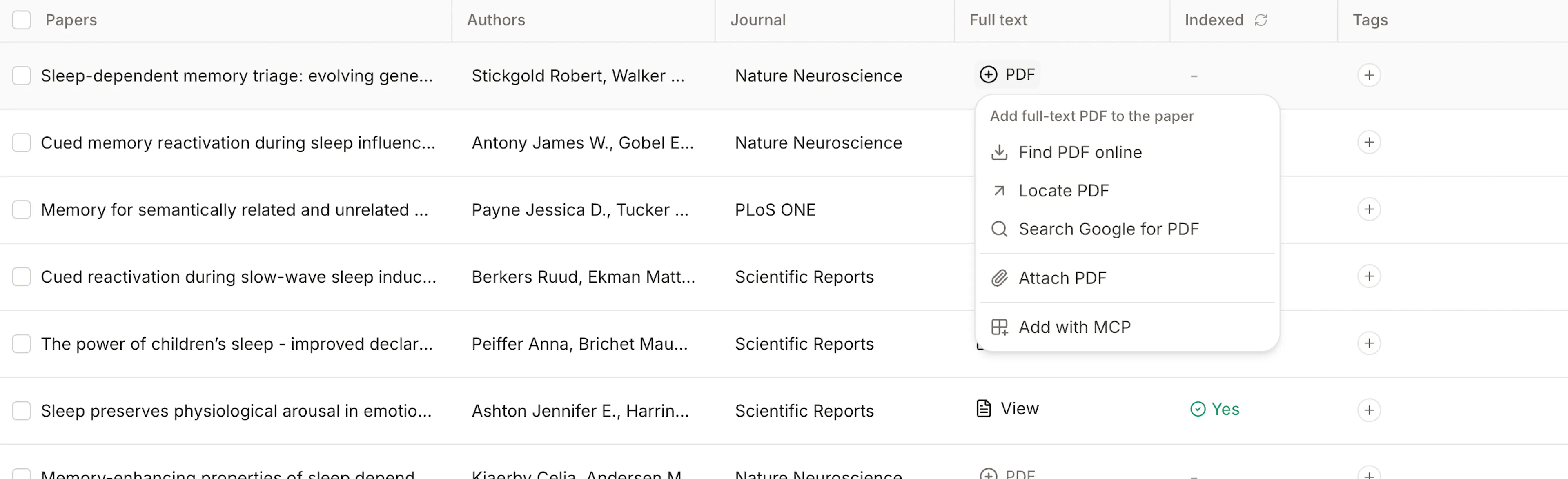
Click + PDF on the paper's row
Every paper without a PDF has a + PDF button on its row. In table view it's in the Full text column. In list view it's next to + Tag. You can also click Add PDF in the paper's detail panel.
Choose an option
- Find PDF online: Paperguide finds the PDF and attaches it automatically.
- Locate PDF: opens the paper's page. Open the PDF there, and Paperguide attaches it.
- Search Google for PDF: searches Google for the paper's PDF in a new tab.
- Attach PDF: upload a PDF from your computer.
- Add with MCP: your AI assistant finds the PDF and attaches it.
The first three options use the Chrome extension.
While Paperguide searches, the row shows Finding PDF…. If it can't attach the PDF, the row shows one of these labels instead. Click the label to see your options.
- Verify: the source wants a quick check, such as a CAPTCHA. Click Open, complete the check, and the PDF is fetched automatically.
- Restricted: the PDF is behind a paywall. Set up library access and click Retry, or add the PDF manually.
- Failed: something went wrong. Click Retry, or add the PDF manually.
Check that a PDF is ready for AI features
After a PDF is attached, Paperguide indexes it so you can chat with it and use it in other tools. A paper's Index Status in its detail panel shows Indexed when it's ready. In table view, the Indexed column shows Yes, No, Indexing… or Failed. If indexing fails, click Retry indexing.