

Get PDFs in Systematic Review with the Chrome Extension
Overview
Full text screening needs a PDF for every paper. When papers move into full text screening, Paperguide fetches open-access PDFs automatically and reuses PDFs already in your Reference Manager. Papers it can't get go to the PDF Missing tab and wait there until a PDF is attached.
Use the Paperguide Chrome extension to find the rest in bulk, attach PDFs you already have, or ask an AI assistant to find them through MCP.
Who can add PDFs: members with Full Access or Review access. Members with View access can only download the list of missing papers. See Members & Roles.
Before you start
- Install the Chrome extension and log in with your Paperguide account.
- If your university or library gives you access to paywalled journals, set up library access first. The extension then tries your library for every paper in the search.
Get missing PDFs for the whole review
Open full text screening
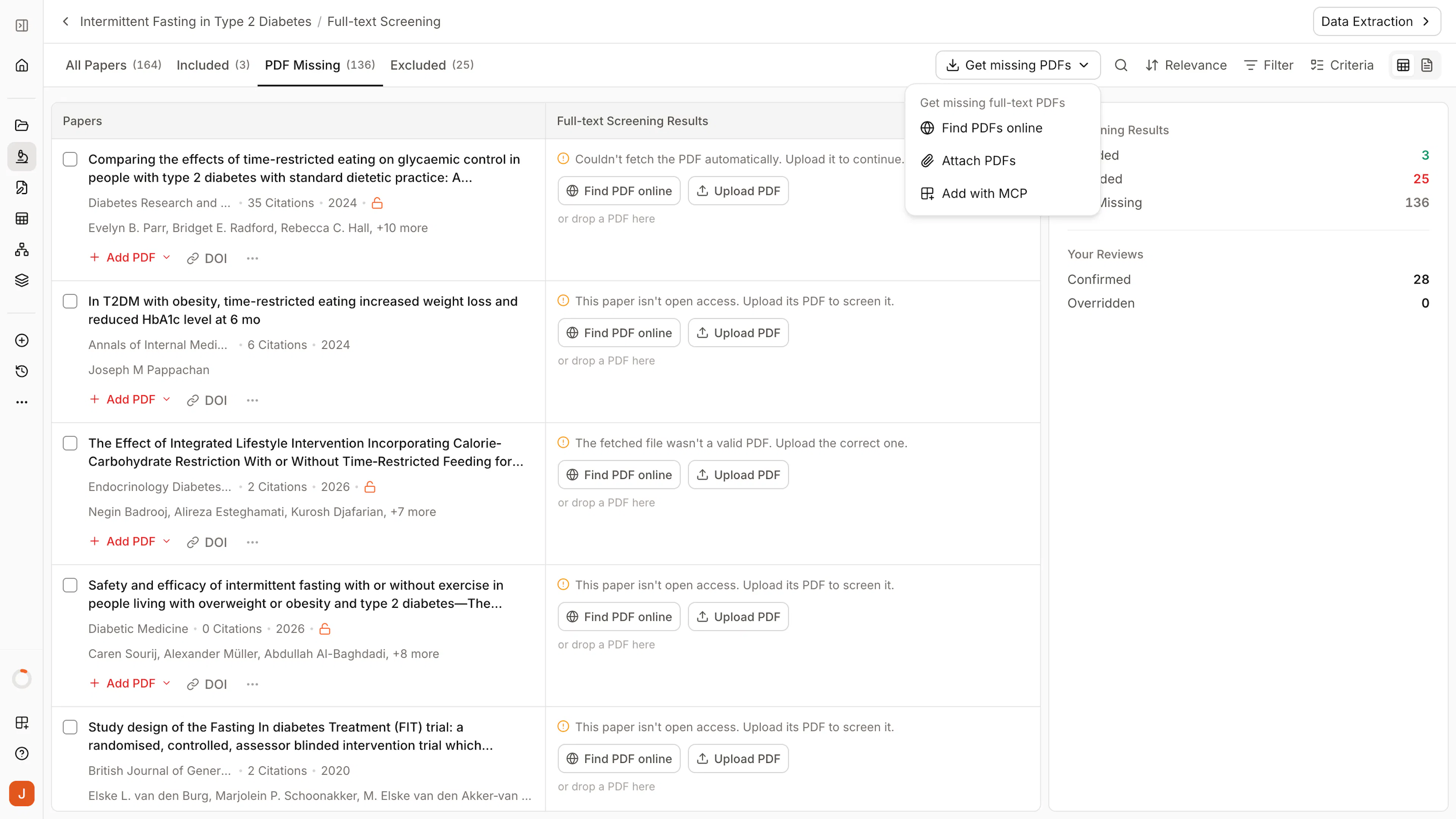
Open your review and go to Full Text Screening. The PDF Missing tab lists every paper that still needs a PDF.
Click Get missing PDFs and choose an option
Get missing PDFs is in the toolbar on every tab while any paper still lacks a PDF. Choose:
- Find PDFs online: opens the Find PDFs dialog, where the Chrome extension finds and attaches the PDFs. See Use the Find PDFs dialog below.
- Attach PDFs: upload PDFs you already have. See Upload PDFs you already have.
- Add with MCP: opens a ready-made prompt in Claude or ChatGPT, or copies it for Gemini. Your AI assistant finds the missing PDFs and attaches them.
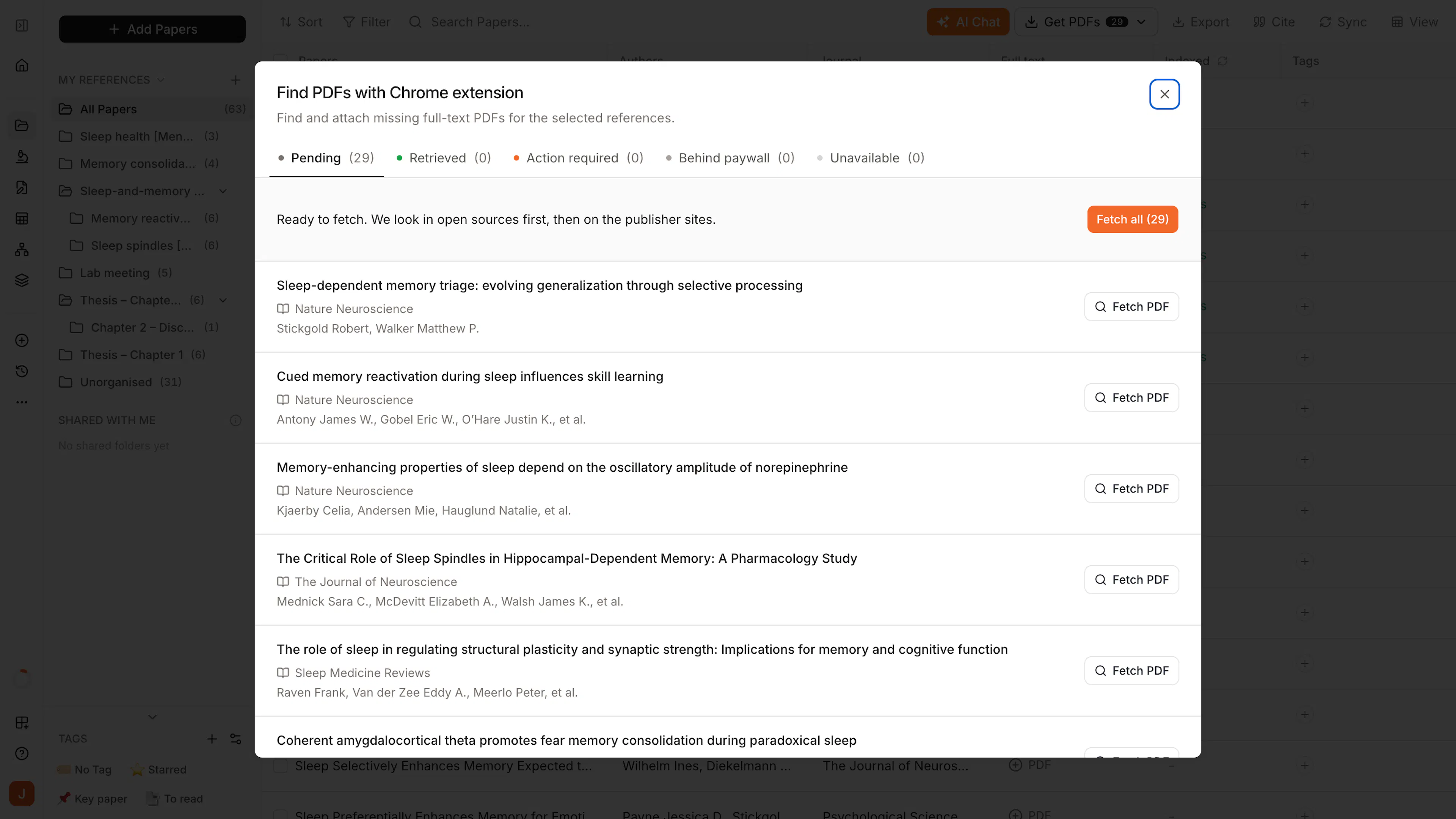
Use the Find PDFs dialog
PDFs found here are added to your review. In an AI Review, screening starts on its own for each paper that gets a PDF. In a Dual Review, the paper enters both reviewers' queues.
Upload PDFs you already have
Click Get missing PDFs → Attach PDFs to open Bulk upload PDFs.
Drop your PDFs
Drop up to 200 PDFs, or click Browse. Paperguide matches each file to its paper by the DOI printed in the PDF.
Check the matches
Files are grouped by how well they matched:
- Matched: the DOI matched a paper.
- Check match: a likely match. Confirm it's the right paper.
- Needs a paper: no match found. Choose the paper yourself from the missing list.
- Already has a PDF: that paper doesn't need this file.
Attach
Tick the files you want and click Attach. Papers leave PDF Missing as each one finishes processing. In an AI Review, each attached paper is screened by AI and uses credits.
Download the list of missing papers
Don't have the PDFs yet? In Bulk upload PDFs, download the missing papers as RIS or CSV. Import the RIS file into Zotero or EndNote and use its find full text feature, then upload the PDFs it finds. Members with View access see this as Download list in the toolbar.
Get the PDF for one paper
Click Add PDF on the paper
In the PDF Missing tab, click Add PDF on the paper.
Choose an option
- Find PDF online: Paperguide finds the PDF and attaches it automatically.
- Locate PDF: opens the paper's page. Open the PDF there, and Paperguide attaches it.
- Search Google for PDF: searches Google for the paper's PDF in a new tab.
- Attach PDF: upload a PDF from your computer.
- Add with MCP: your AI assistant finds the PDF and attaches it.
The first three options use the Chrome extension.
Why a paper is still missing its PDF
Each paper in PDF Missing shows the reason. The most common ones:
| Message | What to do |
|---|---|
| This paper isn't open access. | Set up library access, or upload a PDF you have. |
| Couldn't fetch the PDF automatically. | Try Find PDF online or Locate PDF, or upload it. |
| The publisher blocked automatic download. | Use Locate PDF to open the page yourself, or upload it. |
| The fetched file wasn't a valid PDF. | Upload the correct file. |
| The PDF attached belongs to a different paper in this review. | Upload the right PDF for this paper. |
| The PDF is over the 100 MB limit. | Upload a smaller copy. |
What happens to papers without a PDF
You don't have to find every PDF before you start screening. A paper without a PDF is held out of screening and counted as not retrieved in your PRISMA diagram. You can add its PDF at any time, even after the stage is verified, and it is then screened like the rest.
Every paper you leave without a PDF stays in your review's reported totals as not retrieved, so try to resolve them before you write up. See AI Review full text screening and Dual Review full text screening.