
AI Chat and writing tools
Use AI Chat, Smart Continue, Write with AI, AI Edit and Describe to LaTeX in your documents.
AI Writer has one chat and four in-editor tools. All of them cite papers, and all use AI credits.
| To… | Use | How |
|---|---|---|
| Ask questions, find papers, or have AI write or revise parts of the document | AI Chat | AI Chat button in the top bar |
| Get suggestions as you type | Smart Continue | On by default. Pause while writing. |
| Write a paragraph at the cursor, such as an introduction or a transition | Write with AI | Cmd+J (Mac) or Ctrl+J (Windows) |
| Rewrite selected text | AI Edit | Select text, then AI Edit |
| Turn a description into an equation | Describe to LaTeX | Math block or inline equation, then Describe |
AI Chat
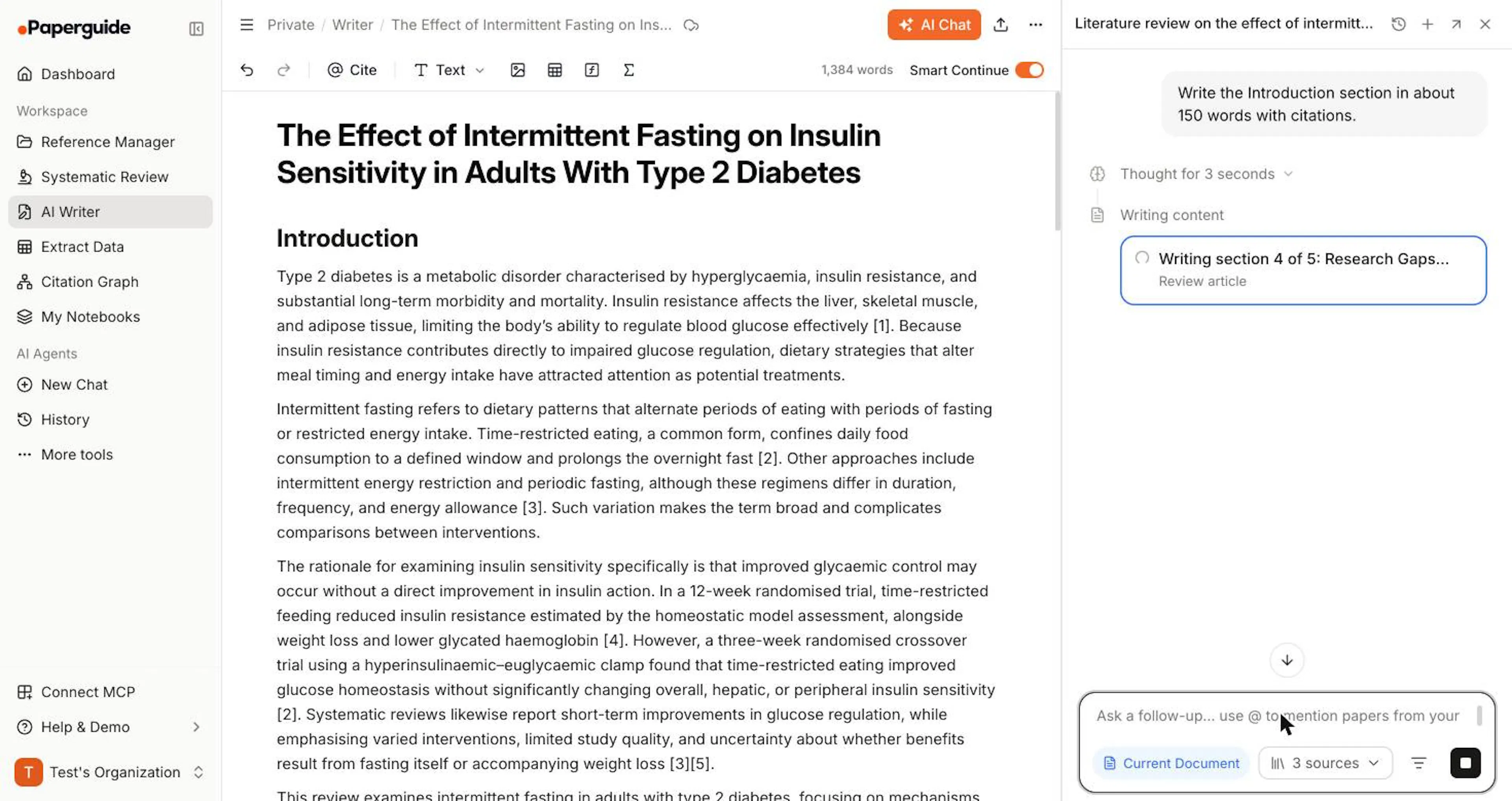
AI Chat sits beside the editor and knows your open document. Ask it about your topic, ask it to find papers, or tell it to change the document. It edits the document directly, and changes are highlighted as they happen.
Things to ask:
- "Find recent trials on time-restricted eating and add them to the clinical evidence section."
- "Shorten the conclusion to one paragraph."
- "Add a table comparing the fasting regimens."
- "Change the citation style to Vancouver."
Ways to work with it:
- About a passage: select text, then click AI Chat in the menu that appears. The selection is attached to your message.
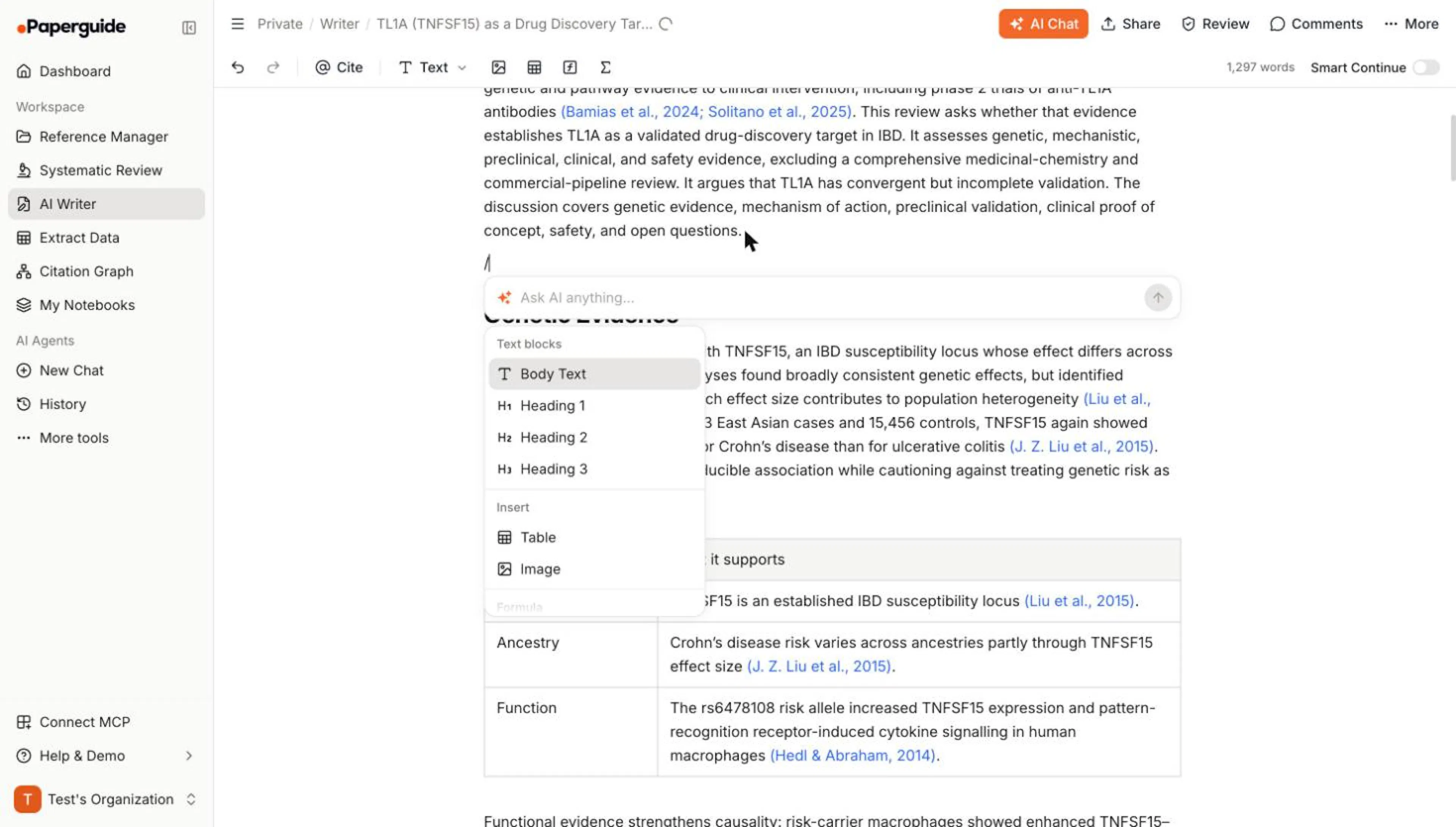
- Write at the cursor: type / on an empty line, write your request in Ask AI anything..., and send it. The answer is written where your cursor is.
- Mention papers: type @ in the chat box. Use the sources button next to Current Document to choose which sources the chat searches.
- New topic: if you ask for a different piece of writing, the chat offers Create a new document or Replace this document.
- Chat history: the icons at the top of the chat show earlier chats for this document, start a New chat, or open the chat full screen.
Name the section you want changed. Before each edit, AI saves a Before AI edit version, so you can undo any change from More → Versions → See history.
Smart Continue
Smart Continue suggests the next sentence or two as you write, with citations. It is on by default; turn it off with the Smart Continue switch in the toolbar.
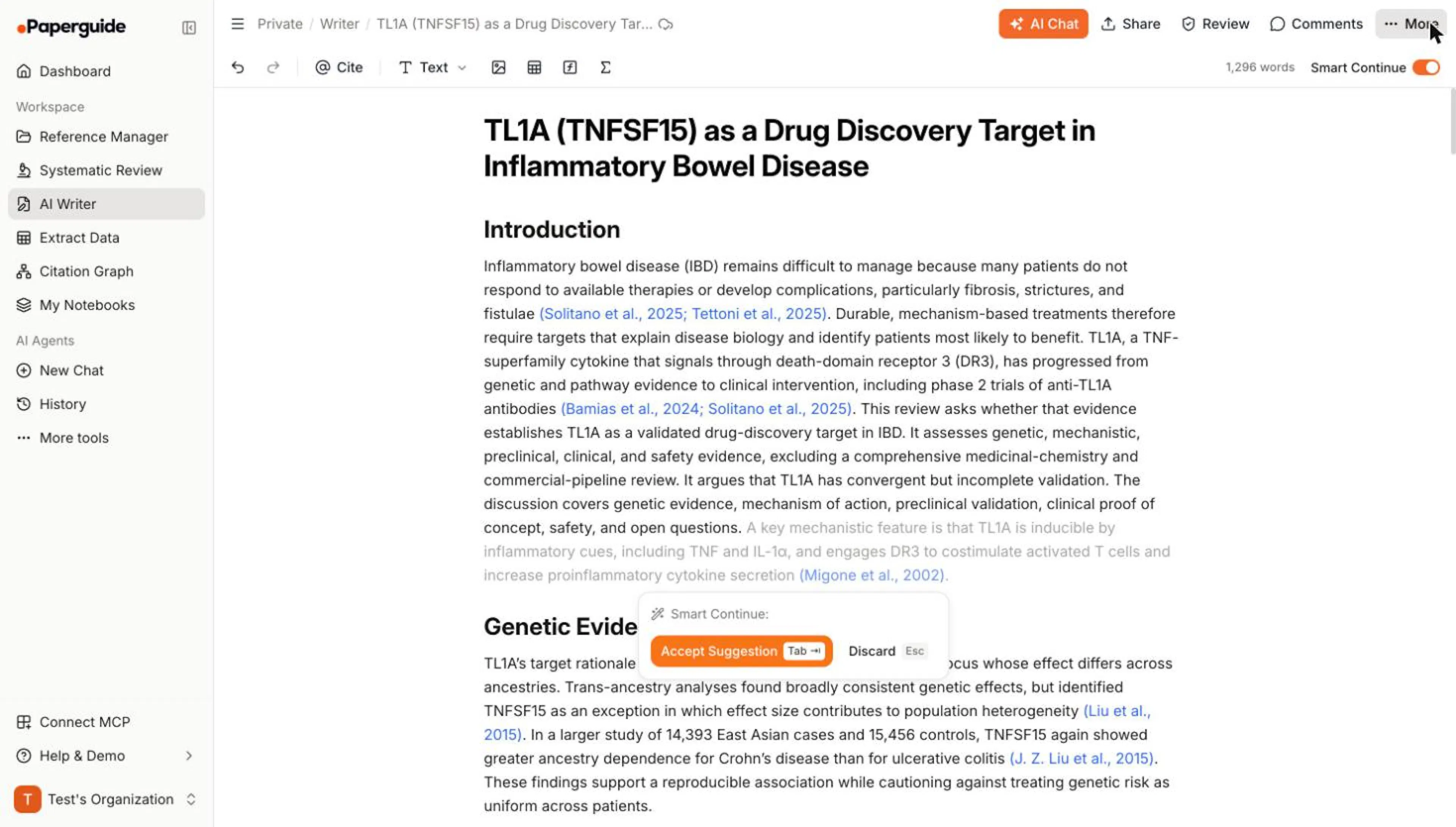
- Pause at the end of a sentence and a grey suggestion appears.
- Press Tab to accept it, or Cmd/Ctrl+→ to accept one word at a time.
- Click Discard, or keep typing, to dismiss it.
After you accept a suggestion, the next one follows. Suggestions don't appear inside a word or in headings.
Write with AI
Place your cursor and press Cmd+J (Mac) or Ctrl+J (Windows).
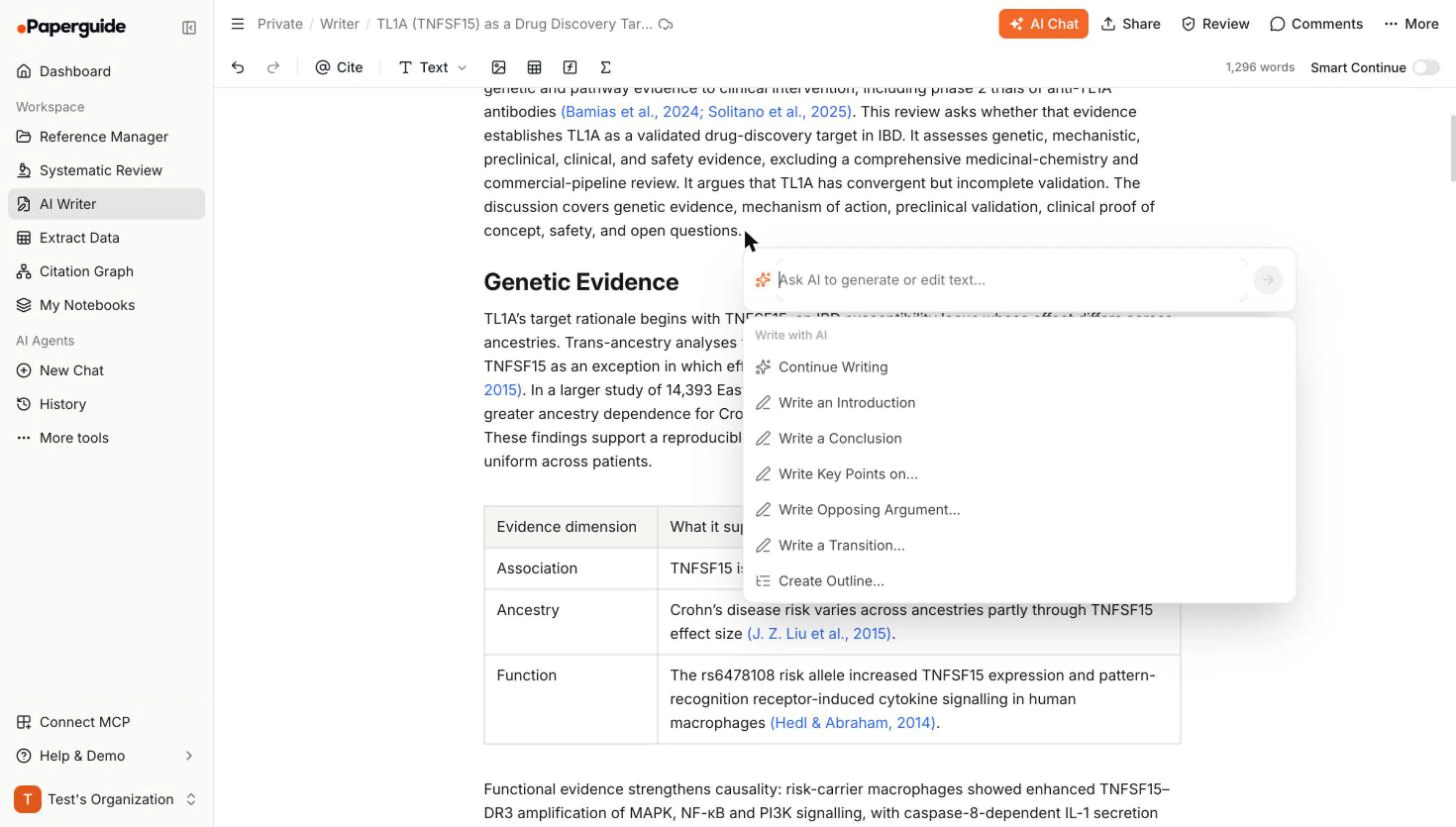
Pick Continue Writing, Write an Introduction, Write a Conclusion, Write Key Points on…, Write Opposing Argument…, Write a Transition… or Create Outline…, or type your own request. Then Insert the result, Discard it, or cycle through other suggestions.
Write with AI cites the papers already in your document. In a document with no papers yet, the text has no citations.
AI Edit
Select text and click AI Edit.

- Improve Writing: clearer, tighter wording.
- Change Tone: Academic, Casual, Persuasive, Bold or Friendly.
- Simplify: plainer language.
- Humanize: a more natural voice.
- Translate: English, Spanish, French, German, Dutch, Chinese or Japanese.
- Or type your own instruction, such as "make this more concise".
Citations in the selection are kept. Choose Accept to replace the text, Insert Below to keep both, or ask for another suggestion. Type in Tell AI what to do next… to refine the result.
Describe to LaTeX
Insert a Math Block or Inline Equation from the toolbar or the / menu, open the Describe tab, and type the equation in plain English, such as "the integral of e to the x from 0 to infinity". Click Generate. Use the KaTeX tab to adjust the result.
The / menu
Type / on an empty line for the Ask AI anything... bar and the block menu: body text, headings, table, image, math block, inline equation, lists, code block, blockquote and divider.